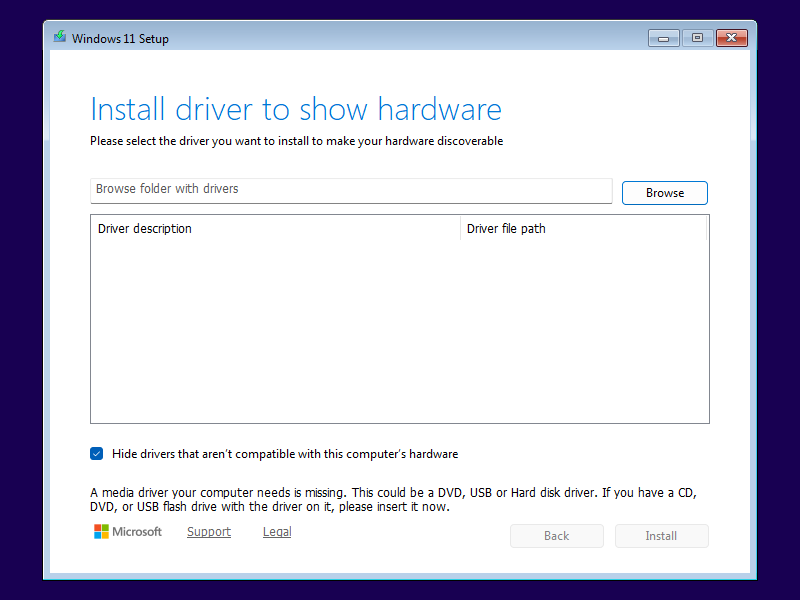
When you try to install Windows via a bootable USB flash drive, you might unexpectedly encounter a dialog that seems to indicate that you need some kind of device driver to continue. With Windows 11 24H2 or 25H2, this dialog will look like this:
Windows 10 and older versions of Windows 11 show a slightly different version of this dialog:
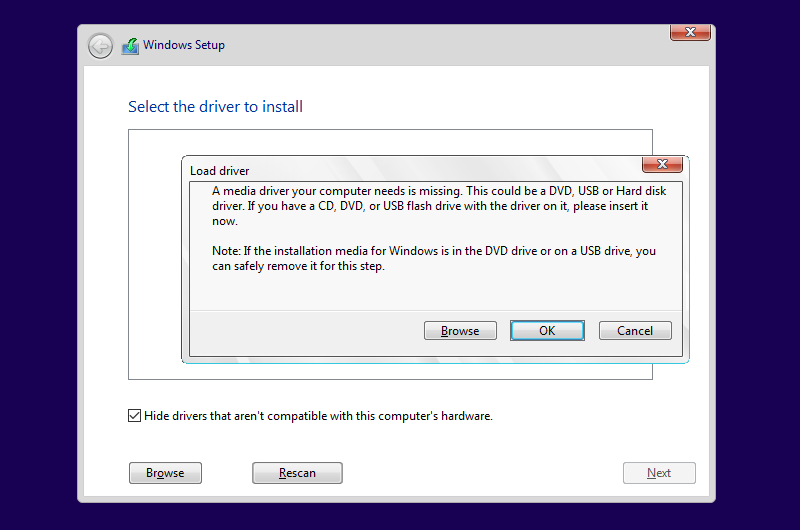
More often than not, these dialogs are misleading, and the issue is not caused by a missing device driver at all. In fact, there are two very different causes for it:
If it is the first screen you see in Windows Setup, the problem is actually not a missing device driver, but a bad USB flash drive. Windows Setup searches for a install.wim, install.esd or install.swm image file at the very beginning of the installation process, even before asking for language and keyboard settings. When your USB flash drive is unreliable, Windows Setup might be able to boot from it, but then fail to locate the image file. To verify this, press Shift+F10 to open a console window and inspect the log file.
ConX setup uses the X:\$WINDOWS.~BT\ log file. When Windows Setup can locate the image file, you will see these lines:
2026-07-27 16:19:28, Info                  MOUPG  Driver: Searching for install images...
2026-07-27 16:19:28, Info                  MOUPG  Driver: Module to hash is [X:\Sources\SetupHost.exe]
2026-07-27 16:19:28, Info                  MOUPG  Driver: Evaluating drive [D] as media location
2026-07-27 16:19:28, Info                  MOUPG  Driver: Media located at drive [D]
2026-07-27 16:19:28, Info                  MOUPG  Driver: Found install image at [D:\Sources\Install.wim]
2026-07-27 16:19:28, Info                  MOUPG  Driver: Found Media path at [D:]
However, Windows Setup fails to locate the image file, you will see these lines instead:
2026-07-27 16:19:28, Info                  MOUPG  Driver: Searching for install images...
2026-07-27 16:19:28, Info                  MOUPG  Driver: Module to hash is [X:\Sources\SetupHost.exe]
2026-07-27 16:19:28, Info                  MOUPG  Driver: Evaluating drive [D] as media location
2026-07-27 16:19:28, Info                  MOUPG  Driver: Drive [D] did not contain [D:\Sources\SetupHost.exe] at expected location
2026-07-27 16:19:28, Info                  MOUPG  Driver: Found install image at [(null)]
2026-07-27 16:19:28, Info                  MOUPG  Driver: Found Media path at [(null)]
2026-07-27 16:19:28, Warning MOUPG Unable to find mediaLegacy setup uses the X:\ log file, and its content is slightly different. Nevertheless, you can easily distinguish between both cases:
2026-07-27 16:19:28, Info                  IBS    Callback_WinPE_SetSourceMediaInfo_Unattend:Trying to determine source path.
2026-07-27 16:19:28, Info                  IBS    Callback_WinPE_SetSourceMediaInfo_Unattend:Media boot.
2026-07-27 16:19:28, Info       [0x0605af] IBS    Callback_WinPE_SetSourceMediaInfo:Sources folder path is [D:\Sources]
2026-07-27 16:19:28, Info       [0x0605b0] IBS    Callback_WinPE_SetSourceMediaInfo:Install source path is [D:\Sources]
2026-07-27 16:19:28, Info IBS Callback_WinPE_SetSourceMediaInfo_Unattend:Trying to determine source path.
2026-07-27 16:19:28, Info IBS Callback_WinPE_SetSourceMediaInfo_Unattend:Media boot.
2026-07-27 16:19:28, Warning [0x0605b1] IBS Callback_WinPE_SetSourceMediaInfo:Could not determine the source media path. GLE is [0x0]Try these steps to remedy the issue:
You will also see the same dialog after you click the Load Driver button on the Select location to install Windows 11 screen. You will typically do this because Windows Setup failed to recognize your computer's internal disk drive. In this example, Windows Setup only detected the USB flash drive, making the installation of Windows impossible:
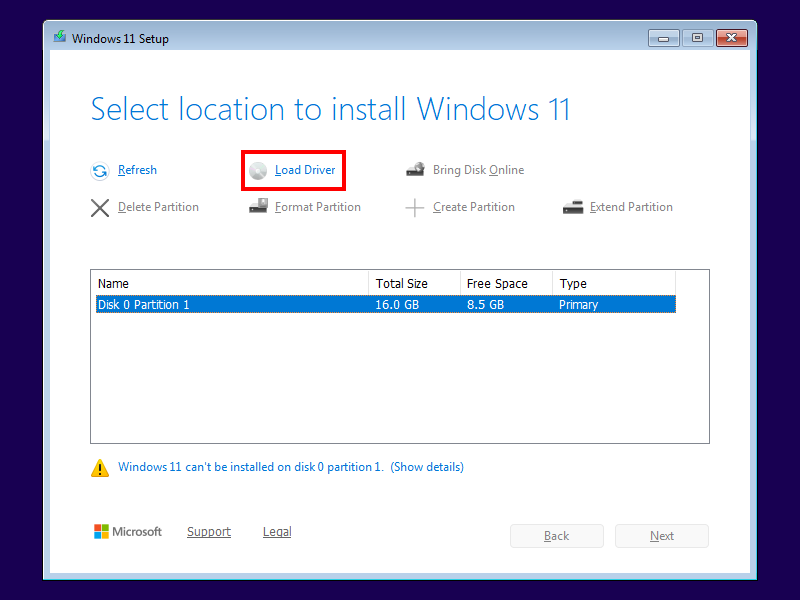
In this case, try the following:
pnputil.exe /enum-devices /problem to see which devices Windows did not recognize..inf, .sys and .cat files in the $WinPEDriver$ folder on your USB flash drive.